First run and your remote
Backdrop Launcher is designed for the remote’s D-pad, Select / OK and Back buttons. Settings save as you change switches, select radio options or adjust sliders.
Move around Home
| Control | What it does |
|---|---|
| Left / Right | Move between apps in a row, or between Continue Watching programmes. |
| Up / Down | Move between app rows, Continue Watching and the top status bar. |
| Select / OK | Open the focused app or programme, or activate a control. |
| Hold Select | After about half a second on an app, open its action menu. |
| Back | Close a menu or return to its parent. On Home, use the configured Back action when this is the default launcher. |
From the first app row, press Up to reach Continue Watching if it is visible, then Up again to reach the status bar. Move to the gear and press Select to open Settings. If Continue Watching is absent, Up goes directly to the status bar. An automatically hidden status bar reappears when you focus it.
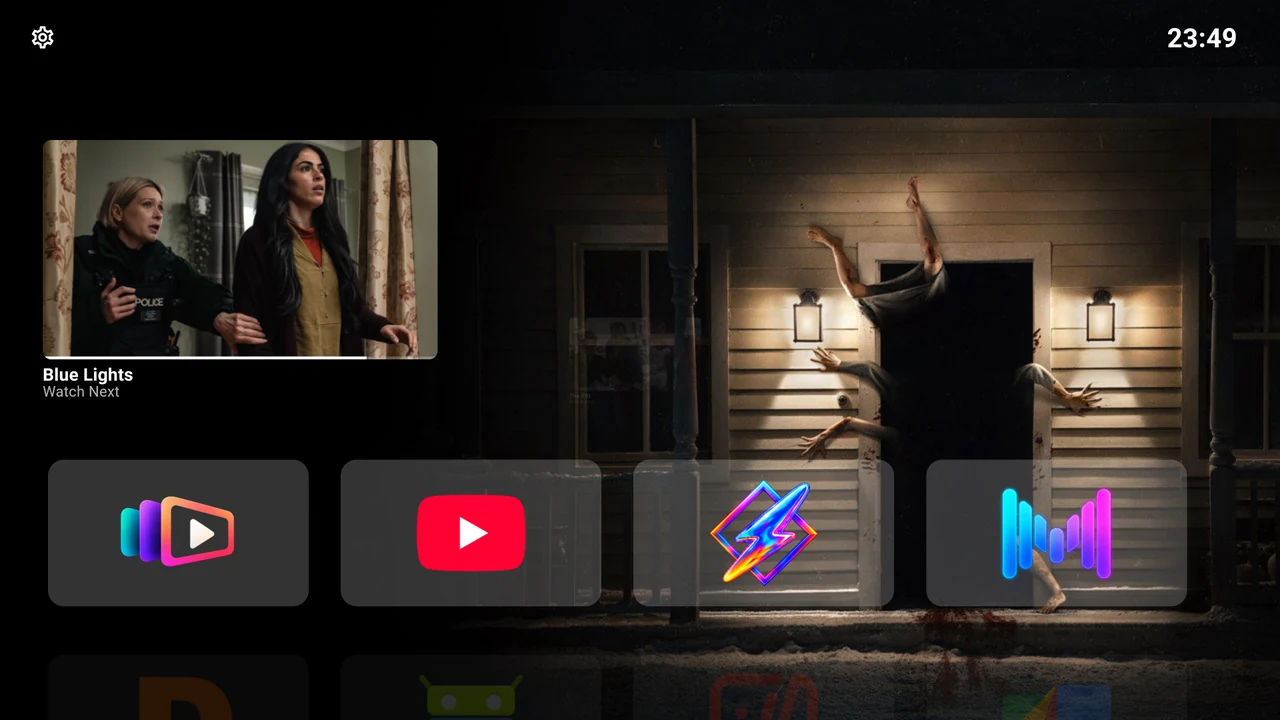
Use Settings
- Select opens a page or changes a switch. A check mark or radio mark shows the saved selection.
- On a slider, use Left/Right to adjust it and Up/Down to move to another setting.
- In Applications, a short Select starts moving a row; Up/Down changes its position and Select finishes. Right or hold Select opens the row editor.
- In a text field, use Android’s on-screen keyboard. Dismiss it if needed to reach Save or Cancel.
- Press Back to return one page at a time, then close Settings.
The main Settings pages are Applications, Interface and System. System settings opens Android’s separate device settings. Some builds also include Check for updates. Settings reference maps every launcher control.
A useful first setup
Create one row for your most-used apps, move it to the top and hide rows you do not need. Next choose an accent with a visible focus border. Leave Continue Watching off until an app you use has a programme to resume, or turn it on and refresh it.
The launcher opens directly to Home without a branded splash or intentional startup wait. It restores locally saved artwork and refreshes compatible programme content after Home appears.