Colours, cards and labels
The accent you choose belongs to your Home screen. Backdrop Launcher keeps that preference across restarts; the guide’s twilight violet is a separate website theme.
Choose your accent
Open Settings → Interface → Accent Color. Move through the grid and press Select to commit a colour. Focus alone does not change it. A check mark identifies the current selection and the Preview area shows it.
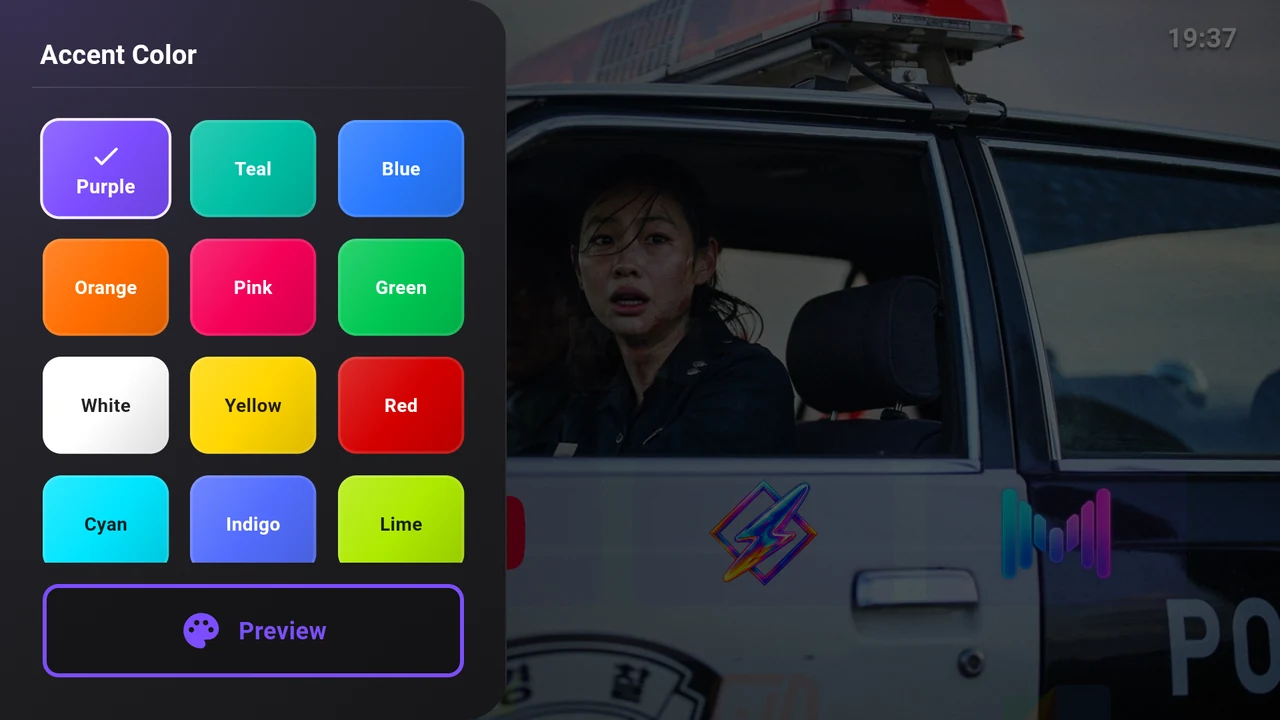
The palette contains Purple, Teal, Blue, Orange, Pink, Green, White, Yellow, Red, Cyan, Indigo, Lime, Amber, Rose and Ice Blue. Your choice is used in focus outlines and app-card backgrounds.
Make cards readable over artwork
Open Settings → Interface → Appearance.
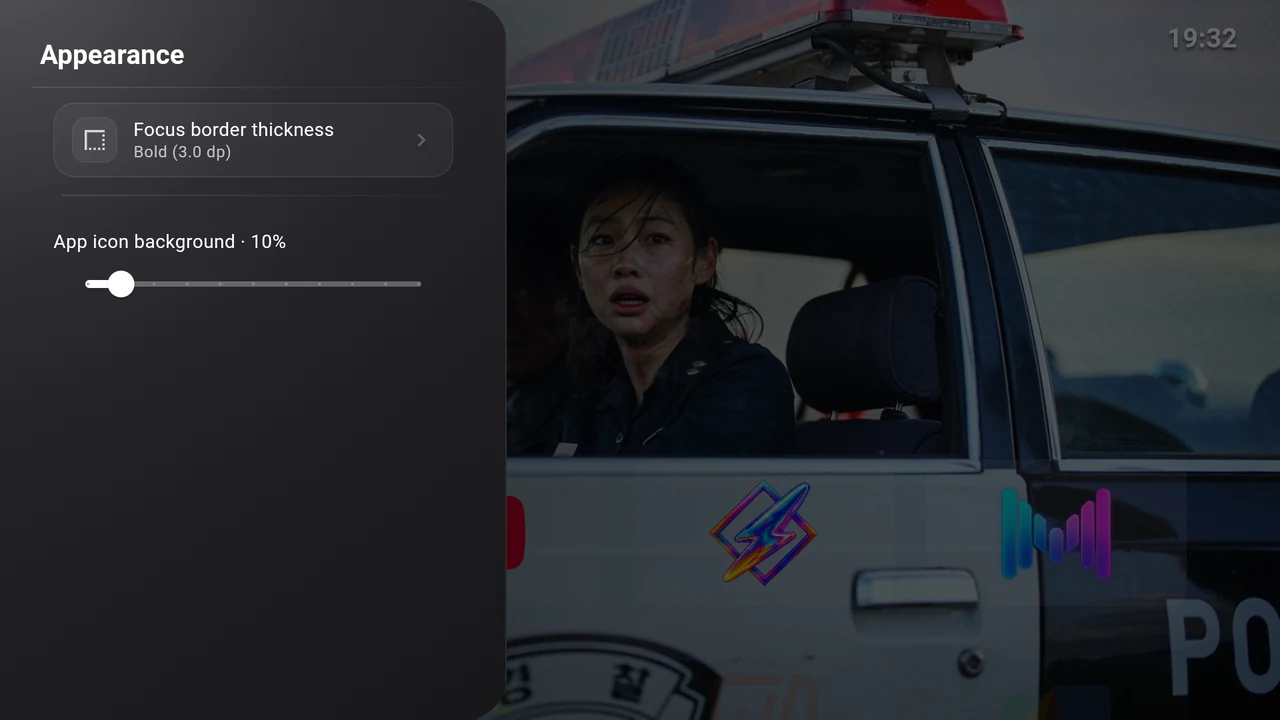
App icon background adjusts the accent-coloured material behind app artwork. Focus the slider and use Left/Right in 10% steps, from 0% to 100%. The setting changes the background, not the opacity of the app image itself.
The default is 10%. More opaque card backgrounds can make cards easier to distinguish against a busy scene. Check your choice on Home against several backdrops.
Select Focus border thickness to choose Subtle (1.0 dp), Default (1.5 dp), Medium (2.0 dp) or Bold (3.0 dp). A TV-icon preview helps you compare them. Default is 1.5 dp.
Labels, sound and focus feedback
Open Settings → Interface → Miscellaneous.
| Control | What changes |
|---|---|
| App card highlight animation | Pulse the focused card’s outline. Requires focus borders. |
| Click sound on key press | Play key-feedback sounds. TV volume and mute also affect what you hear. |
| Show category titles | Display row names on Home. |
| Show App Names Below Icons | Add app-name labels below the cards. |
| Show focus borders | Display the focused-card outline. |
| Watch Next | Open Continue Watching settings. |
Turning focus borders off also turns the highlight animation off. Turning borders on again does not re-enable the animation; enable it separately if you want it.
For clear remote navigation, keep focus borders visible and choose a thickness you can recognise from your usual seating distance. Row titles and app-name labels can help identify less familiar cards, though they use some of the space available to artwork.