Your home
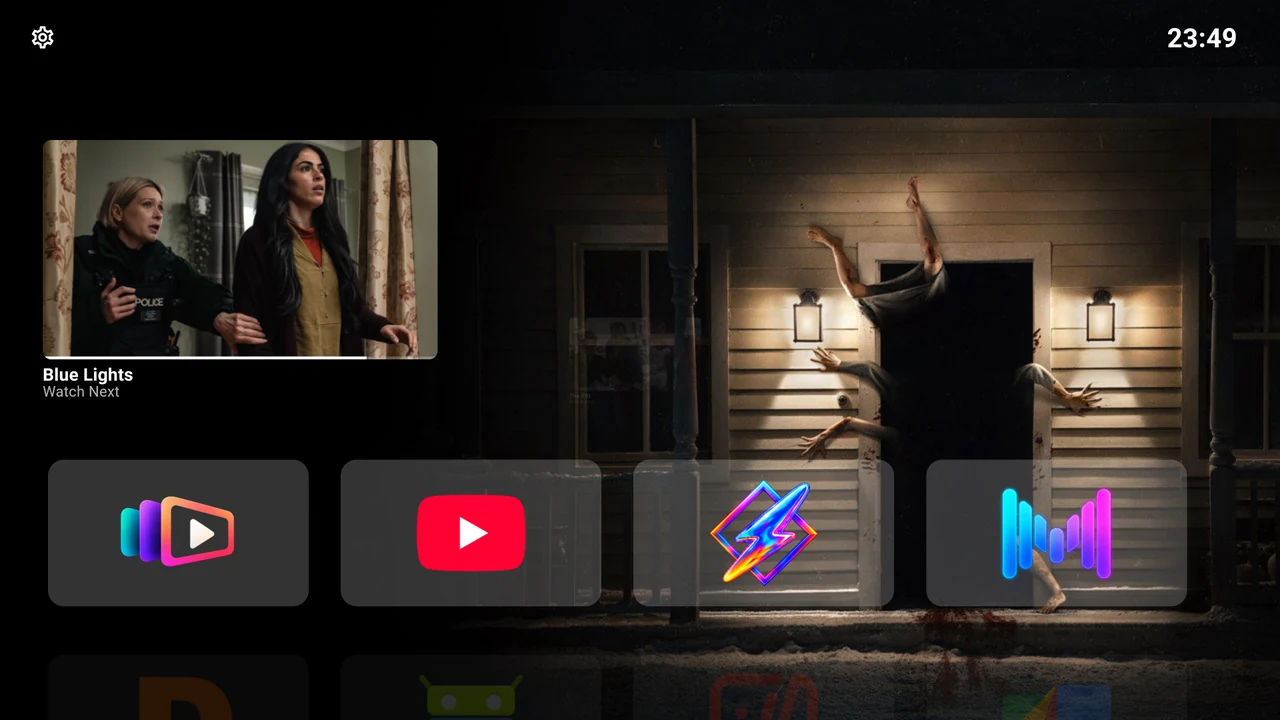
Home brings together a backdrop, your app rows, an optional Continue Watching area and a status bar. The selected row is prominent; a faint preview below it lets you see that another row is available.
Open something
Move Left/Right to an app and press Select to launch it. Press Down for the next row or Up to return; the row remembers the focused app. A long row scrolls horizontally as you move to later cards.
If Continue Watching is visible, press Up from the first app row. Left/Right browses its programmes and Select hands the chosen item to the app that supplied it. Learn about compatibility and filters.
Put your apps in order
Rows appear on Home when they are enabled, contain at least one app and have a visible member. You can put an app in more than one row. For example, the same music app can appear in both “Daily” and “Music”.
- Create, sort, resize or hide a row.
- Move a card, hide an app or change its artwork.
- Show row titles or app names below cards.
If Home has no apps
The Add apps to a row in Settings control leads focus to the Settings gear. Open it, choose Applications, then add a row or edit an existing one. Check that the row is shown, has checked app members and that those apps are not globally hidden.
Set the scene
Backdrops provide the artwork behind your rows. Continue Watching’s Immersive mode can use the selected programme’s image instead. Choose the view that suits your Home, then adjust colours and card backgrounds for readability.