Continue Watching
Continue Watching uses Android TV’s Watch Next feed. Compatible apps supply programme titles, artwork, progress and a link back into the app. Backdrop Launcher displays that information; the provider app handles playback and subscriptions.
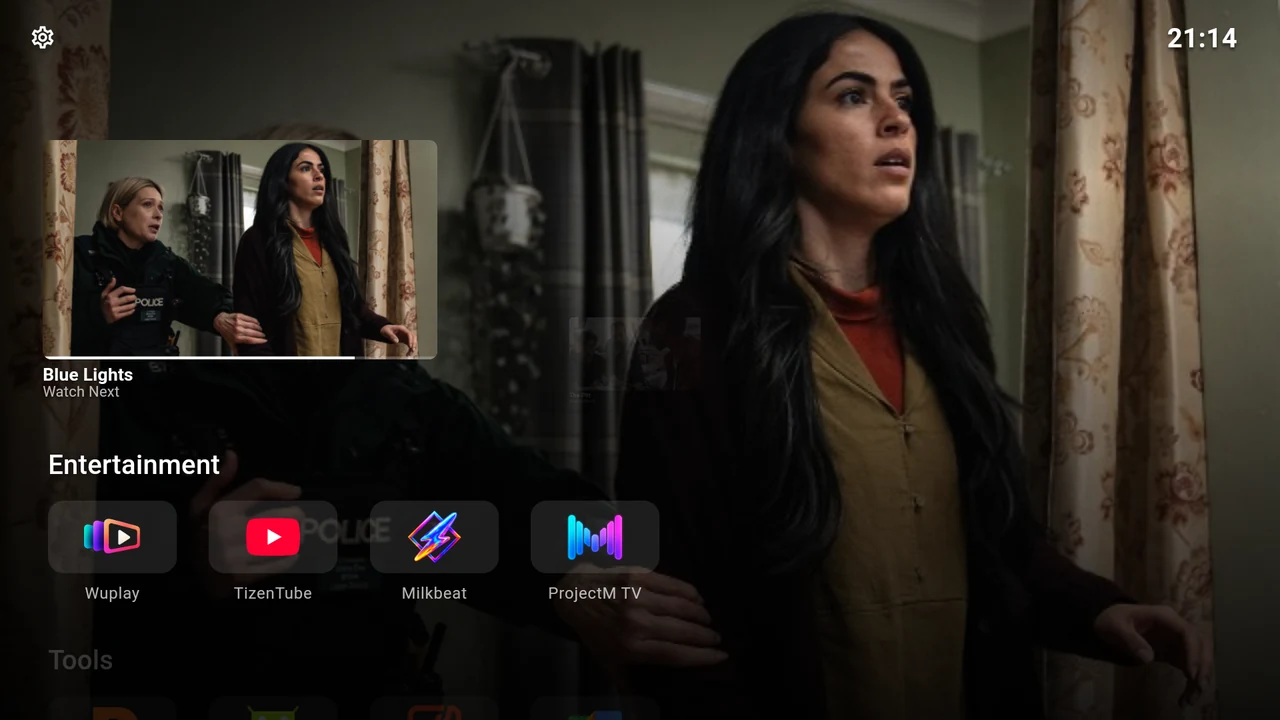
The area is called Watch Next in Settings. It appears on Home only when enabled and eligible programmes are available. Installing an app or connecting Trakt does not automatically create a programme here.
Turn it on
- Open Settings → Interface → Watch Next.
- Enable Show Watch Next Section.
- If asked for TV-listings access, choose Grant permission and follow Android’s prompt. Return and select Check again if shown.
- Choose Refresh content to reload the provider feed.
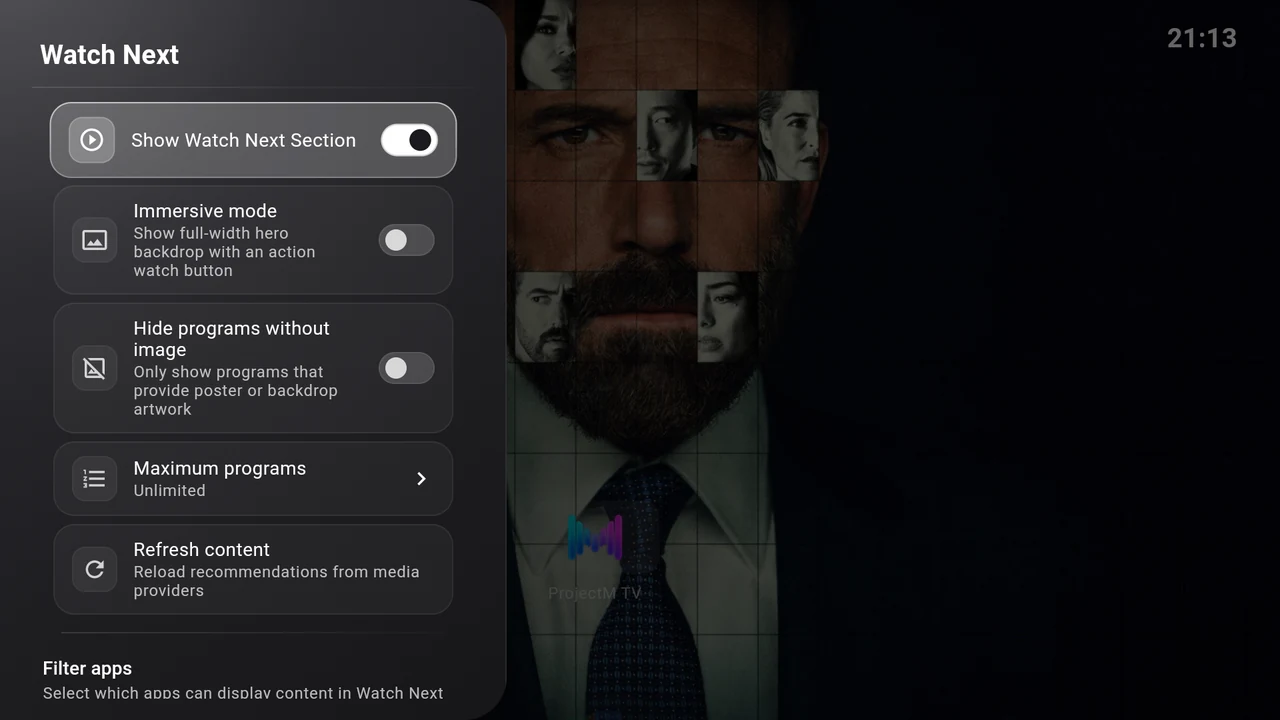
If the TV cannot provide a permission screen, see Continue Watching is missing.
Browse and resume
From the first app row press Up, then use Left/Right to browse programmes. Press Select on the selected card to open it in its provider app. Down returns to your app rows; Up reaches the status bar.
The progress strip reflects data supplied by the provider. A provider may open a detail page or loading screen before playback. It controls the exact resume behaviour.
Choose how it looks
| Setting | Effect |
|---|---|
| Immersive mode | Use the selected programme’s artwork across Home. Turn it off to keep your regular backdrop. |
| Hide programs without image | Exclude programmes without suitable artwork. This can reduce the number shown. |
| Maximum programs | Choose Unlimited, 5, 10, 15, 20, 25, 30 or 50. Unlimited adds no lower user limit; the provider feed is still capped at 50 items. |
| Refresh content | Reload the feed and retry artwork. A completion message confirms the refresh, without promising new programmes. |
Turn Show Watch Next Section off to hide the area. Its content is not polled or its posters loaded while disabled.
Include only the apps you want
Scroll to Filter apps in the same settings page. A switch on allows that app’s content; off excludes it. The first view shows known content providers and remembered exclusions.
Choose Show all installed apps to expose the full installed-app filter list. Choose Filter apps again to return to the providers view. Allowing an app does not make it publish Watch Next content.
If every available programme is filtered out, the whole area disappears. Check both the app filter and Hide programs without image before assuming the feed is broken.
Use a compatible app first
Start a programme in the provider app and leave it partway through, then return to Home and refresh. Apps decide which items they publish, when they publish them and whether they offer resume links.