Status bar and date formats
The status bar holds the Settings gear and optional date, time and network information. Open Settings → Interface → Status bar to choose what appears.
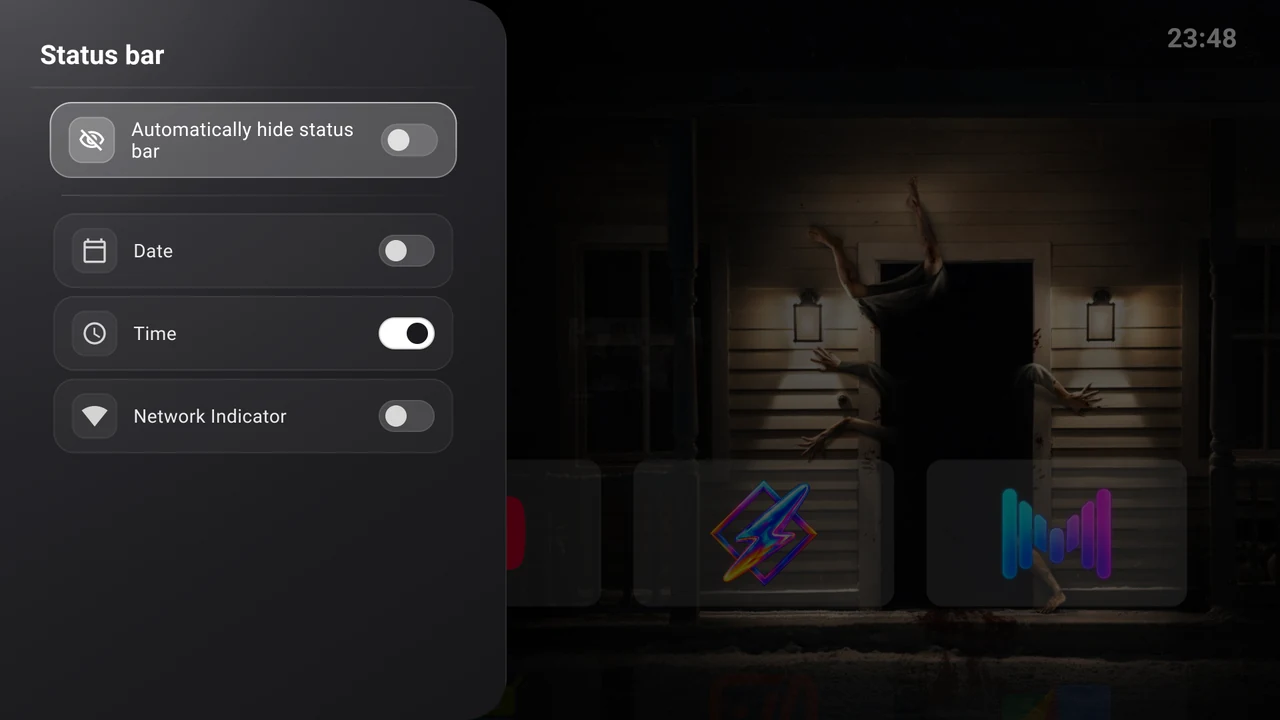
| Switch | What it does |
|---|---|
| Automatically hide status bar | Hide the bar when focus leaves it. Move focus Up to reveal it again. |
| Date | Show the device’s current date. |
| Time | Show the device’s current time. |
| Network Indicator | Show connection type or signal information supplied by Android. Select the indicator to open Android’s network settings. |
Date and Time are independent. Network status depends on your device and active connection; a switch cannot create a missing transport or connection.
Choose a date or time format
Open Settings → System → Date and time format. Select a radio option in Date format and Time format. Each selection saves immediately. The preview uses the TV’s actual clock and locale; the examples beside options are fixed illustrations.
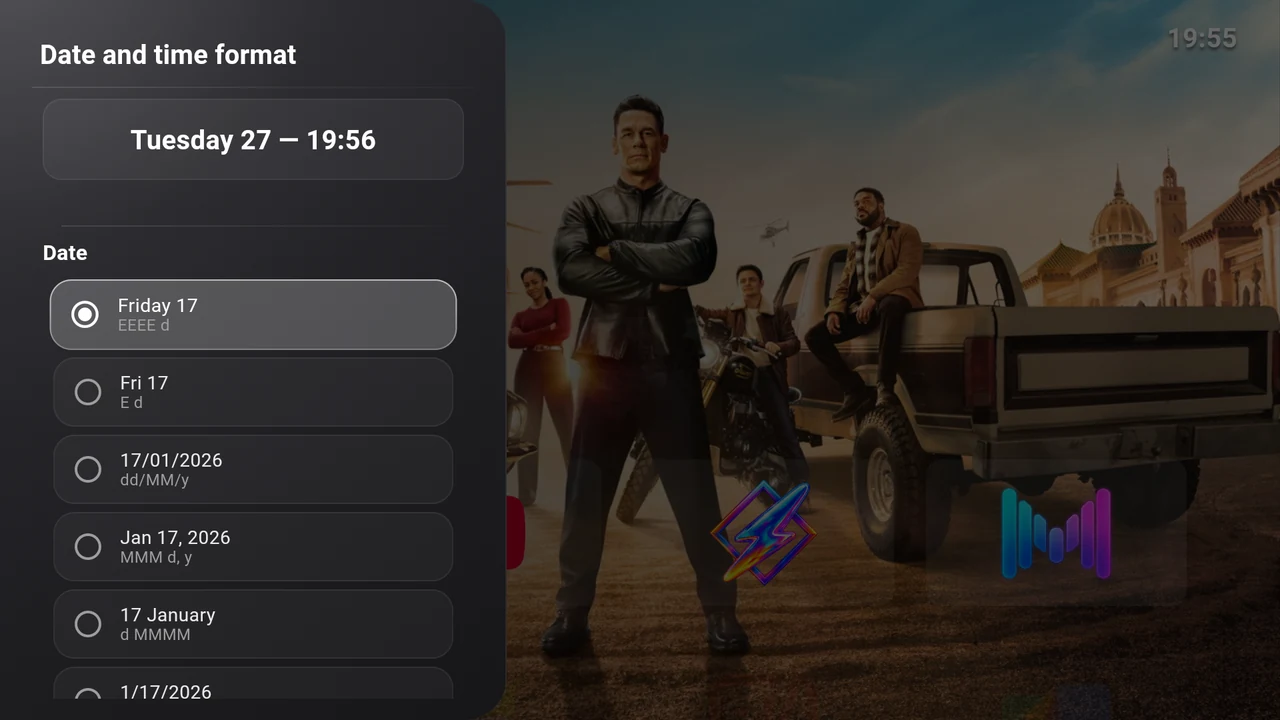
| Date example | Format |
|---|---|
| Friday 17 | Full weekday and day number |
| Fri 17 | Short weekday and day number |
| 17/01/2026 | Day/month/year |
| Jan 17, 2026 | Short month, day and year |
| 17 January | Day and full month |
| 1/17/2026 | Month/day/year |
| Time example | Format |
|---|---|
| 3:45 | 24-hour time without a leading zero (H:mm) |
| 03:45 | 12-hour time with a leading zero and no AM/PM (hh:mm) |
| 3:45 PM | 12-hour time with AM/PM (h:mm a) |
| 03:45 PM | 12-hour time with a leading zero and AM/PM (hh:mm a) |
| 15:45 | 24-hour time with a leading zero (HH:mm) |
These presets also apply to the launcher clock and screensaver. There is no custom-format text field.
Correct the time itself
The format controls change presentation. If the clock or time zone is wrong, open Settings → System settings and adjust Android’s date and time settings. Their location and available automatic-time options vary by firmware.