Create and arrange app rows
Rows let you group apps around the way you use your TV. Open Settings → Applications to see every row, including hidden and empty ones.
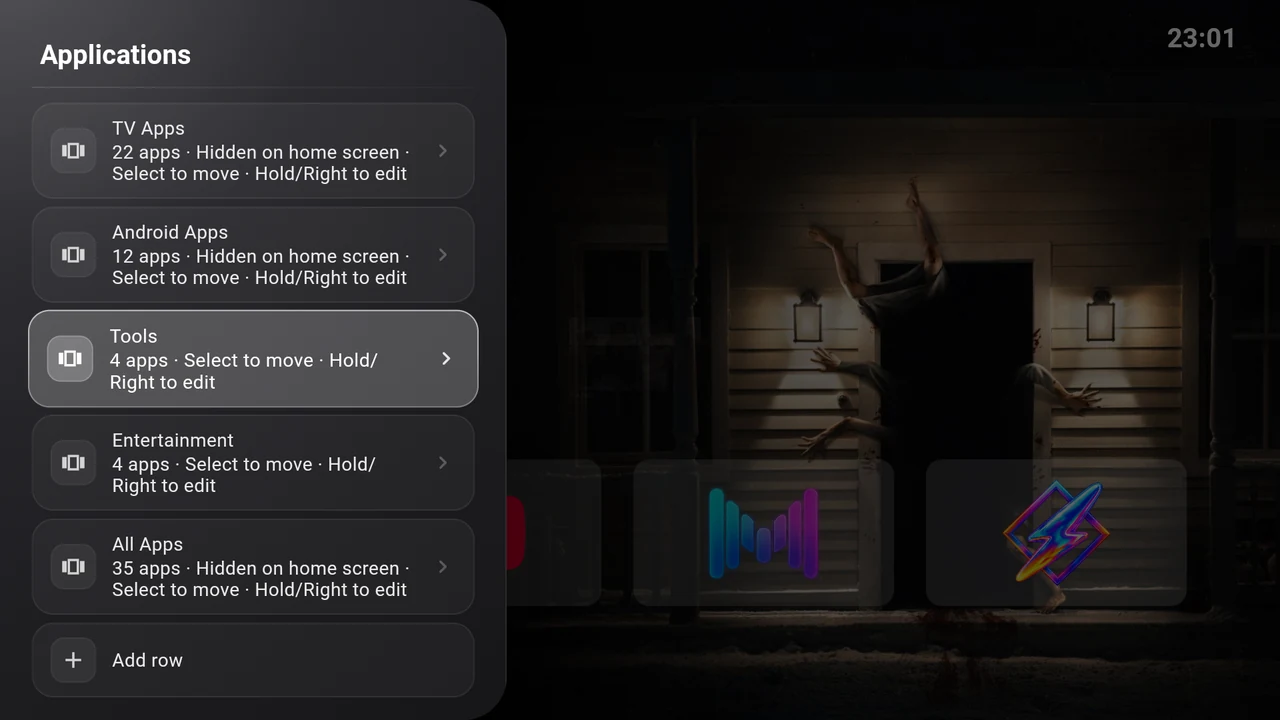
Create a row
- Select Add row.
- Enter a name with the on-screen keyboard. The name must contain some text.
- Choose Save, or the keyboard’s Done action.
- In the row editor, scroll to TV apps and Android apps. Check the apps you want to include.
- Press Back to return to the row manager, then Back again to Home.
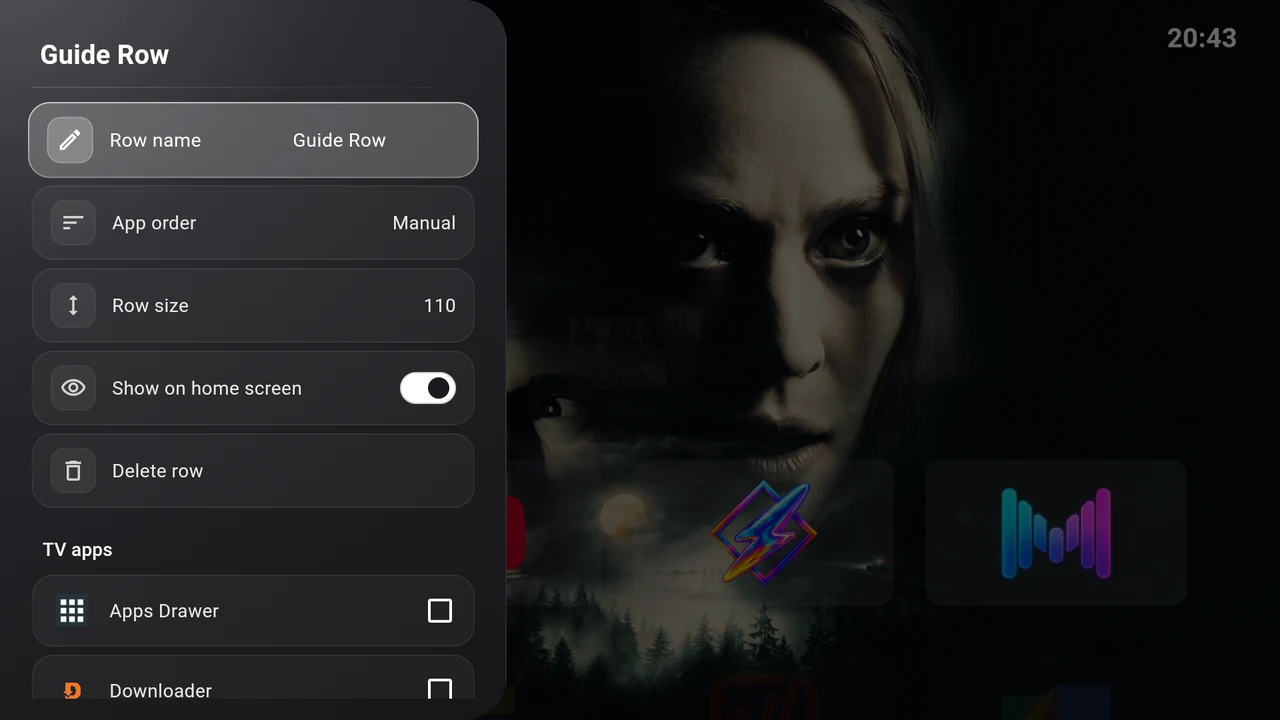
A new row starts with Manual app order, a row size of 110 and Show on home screen enabled. An empty row stays in Applications until you add an app. An app can be checked in several rows.
Move a row
Focus the row in Applications, then press Select briefly. Use Up/Down to change its position and press Select to finish. Position changes save immediately.
To edit instead of move, press Right on the row or hold Select for about half a second.
Rename, sort and resize
Open the row editor with Right or hold Select.
| Control | How to use it |
|---|---|
| Row name | Select, edit the text, then Save. Cancel leaves the name unchanged. |
| App order | Select to cycle Manual → Alphabetical → Last used. Alphabetical sorts names; Last used puts the most recently launched app first. |
| Row size | Select to cycle 82 → 110 → 140. These are requested card-height limits; available screen space, row titles and app labels can constrain the visible result. |
| Show on home screen | Turn off to hide the whole row while keeping its apps and saved order. |
To position individual cards by hand, choose Manual, return to Home and use Reorder.
Change membership
In the editor, check an app to add it and uncheck it to remove it from this row. Other rows keep their membership. Alternatively, hold Select on an app on Home and use Add to row or Remove from {row name}.
A globally hidden app may remain checked and show Hidden on home screen. It stays absent from all Home rows until you show it again.
Delete a row
Select Delete row in its editor. Deletion is immediate, with no confirmation. It removes the row and its memberships. The apps themselves stay installed, and their membership in other rows is preserved.
For a temporary change, use Show on home screen instead of deleting the row.