Manage apps and artwork
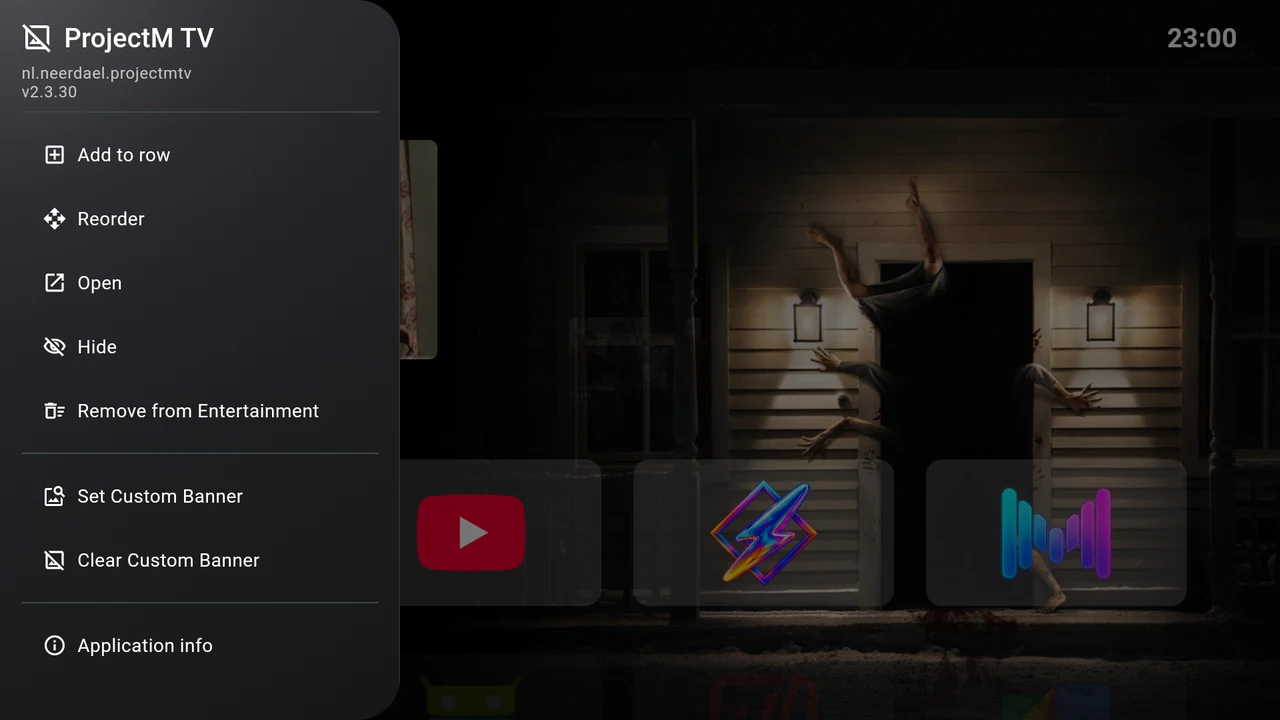
On Home, focus an app and hold Select for about half a second to open its action menu. You can also open Settings → Applications → Installed apps to find an app, including a hidden one.
Add an app to another row
Choose Add to row, then select the destination. The list includes rows that do not already contain the app, including hidden rows. If there are no choices, create a row or check whether the app already belongs to every row.
Remove from {row name} removes only the current membership. It leaves the app installed and available in its other rows.
Move an app within a row
- Make sure the row’s App order is Manual in the row editor.
- On Home, hold Select on the app and choose Reorder.
- Use Left/Right to move the card.
- Press Select or Back to finish and save.
Up/Down does not move an app into another row. Use Add to row and Remove from the current row for that. Reorder is absent in Alphabetical and Last used rows because those modes determine positions automatically.
Hide an app and bring it back
Choose Hide in the app menu or installed-app details. Hiding is global: the app disappears from all Home rows, while its memberships remain saved.
To restore it:
- Open Settings → Applications → Installed apps.
- Find the app marked Hidden on home screen.
- Open it and select Show.
The app returns to its enabled rows. Add to row is available again once the app is shown.
Choose custom artwork
- Hold Select on the app and choose Set Custom Banner.
- Browse the Choose app icon / banner grid with the D-pad. It contains bundled artwork and has no text labels under its images.
- Press Select on an image to apply it immediately. Cancel or Back closes the picker without choosing.
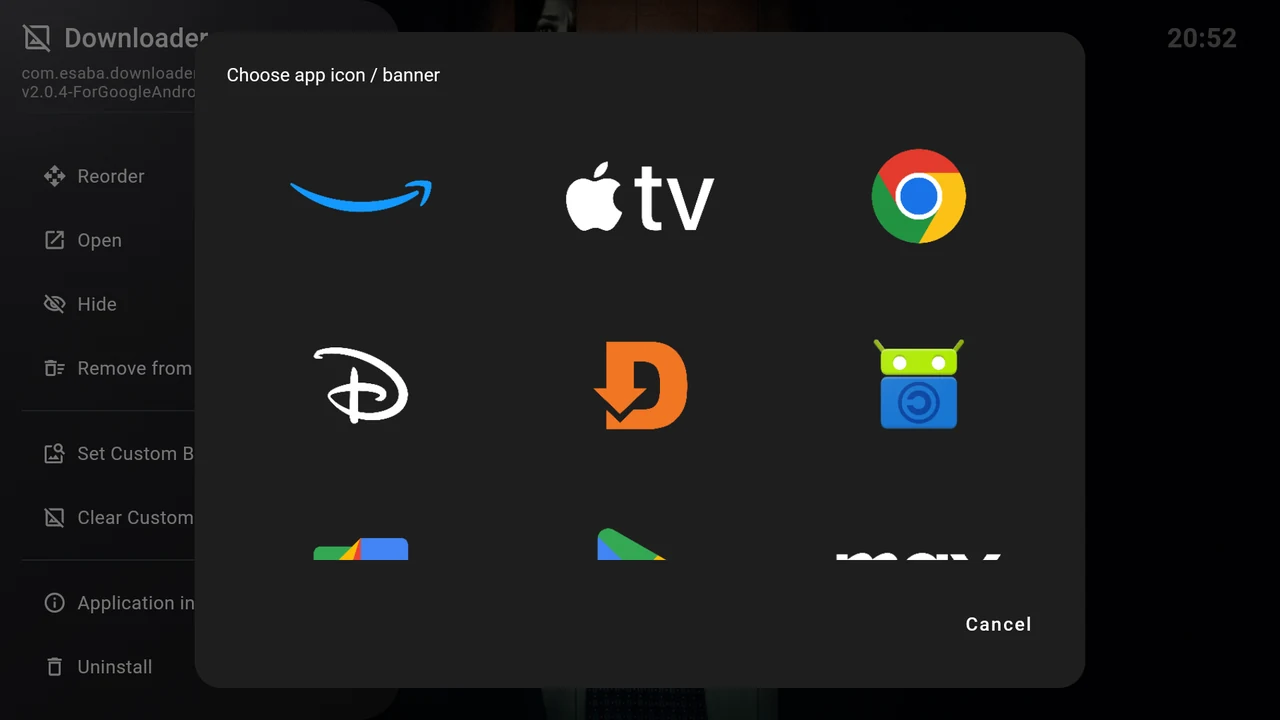
The chosen image changes this app’s card throughout the launcher. The picker offers the artwork included in your build; it is not a file browser. It does not need access to your media files.
Choose Clear Custom Banner to restore the app’s normal artwork. This action appears only when an override exists. Apps without a suitable banner can use an icon and the app name inside the card. Optional labels below cards are a separate setting.
Open Android app details or uninstall
Open launches the app. Application info opens Android’s own app-details page. Uninstall starts Android’s uninstall flow; follow its confirmation to remove the application from the TV.
Removing an app from a row, hiding it and uninstalling it have different effects:
| Action | Result |
|---|---|
| Remove from a row | Only that row loses the app. |
| Hide | All Home rows hide it; saved memberships remain. |
| Uninstall | Android removes the app from the device after its confirmation. |
Installed-app details show the app’s name and version. Use these when reporting a problem, especially when an external app does not open as expected.